
Table of Contents
- Understanding Flash Limitations
- Check Your Instagram App Version First
- Allow Camera and Flash Permissions
- Switch to Rear Camera During Live for Flash Use
- Use Your Phone’s Built-In Flashlight During Live
- Use Third-Party Camera Lighting Apps
- Simulate Flash for Front Camera
- Clean Your Camera and Flash Lens
- Fix Flash Not Working with Basic Troubleshooting
- Try External LED Lights for Better Results
- Conclusion
Going live on Instagram is a great way to connect with your audience, but bad lighting can ruin the moment. Whether you’re indoors at night or in a low-light setting, using your phone’s flash during Instagram Live can brighten things up. But many users face issues, either the flash doesn’t work, or they don’t know how to enable it.
Understanding Flash Limitations
Before jumping into solutions, it’s important to know that Instagram doesn’t offer a built-in flash toggle during Live sessions for all devices. Most phones don’t allow front camera flash by default either, which makes things tricky.
Here’s what you need to know:
- Flash typically works only with the rear camera.
- Front camera flash is simulated using screen brightness on some phones.
- Instagram Live settings vary across Android and iOS devices.
Knowing these points will help you choose the right method for your phone.
Check Your Instagram App Version First
Sometimes the issue isn’t the flash—it’s the app. If your Instagram app is outdated, you might be missing features or experiencing bugs.
To check your app version and update:
- Go to your App Store (iOS) or Play Store (Android).
- Search for Instagram.
- Tap Update if available.
Updating the app can solve a lot of minor issues instantly, including flash and camera settings.
Allow Camera and Flash Permissions
Your phone may be blocking Instagram’s access to flash or camera settings.
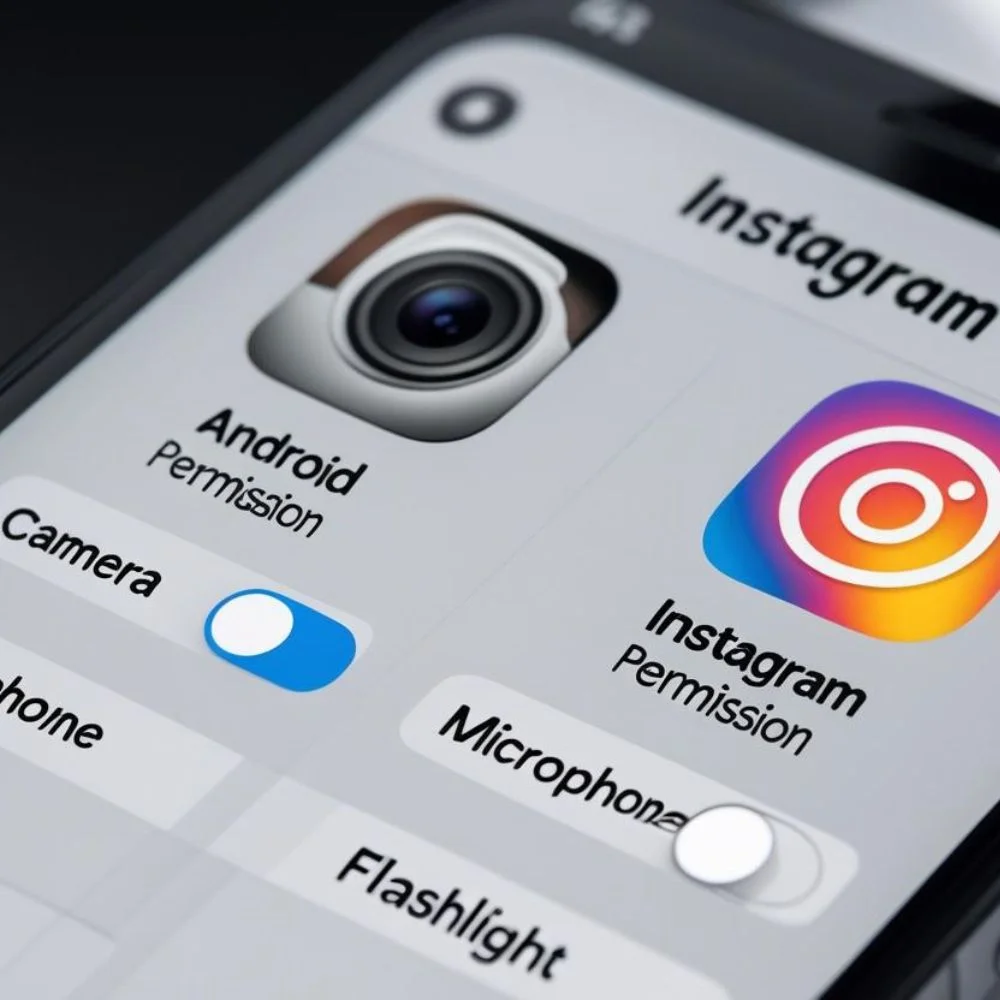
Steps to enable permissions:
For Android:
- Go to Settings > Apps > Instagram > Permissions.
- Enable Camera and Microphone.
- Some phones also have a Flashlight permission allow that too.
For iOS:
- Go to Settings > Instagram.
- Make sure the Camera and Microphone are turned on.
Without these permissions, Instagram won’t be able to access the flash even if the feature is available.
 Switch to Rear Camera During Live for Flash Use
Instagram Live doesn’t support flash on the front camera, so to use flash, you need to go live using the rear camera.
Here’s how to switch cameras:
Start Instagram Live.
- Tap the camera rotate icon in the bottom right.
- The app will switch to the rear camera.
- Once you switch, your phone’s flash option becomes usable.
Now you can turn on the flashlight using your phone’s built-in controls or a workaround app.
Use Your Phone’s Built-In Flashlight During Live
If Instagram doesn’t show a flash button, manually turn on your phone’s flashlight before going live.
How to do it manually:
Swipe down the notification bar (Android) or Control Center (iOS).
- Tap the Flashlight icon to turn it on.
- Open Instagram and start your Live with the flashlight already active.
- This simple hack works well for most rear-camera live streams.
Use Third-Party Camera Lighting Apps
You can also try apps that offer lighting support while live streaming.
Recommended apps include:
- DU Recorder
- CameraFi Live
- Streamlabs Mobile App
These apps allow custom light control and sometimes even offer filters or screen lighting for the front camera.
Note: These tools may not work directly inside Instagram but can be used to prep your lighting or broadcast through RTMP if needed.
Simulate Flash for Front Camera
Instagram doesn’t support front flash officially, but you can simulate it.
Tricks to simulate front flash:
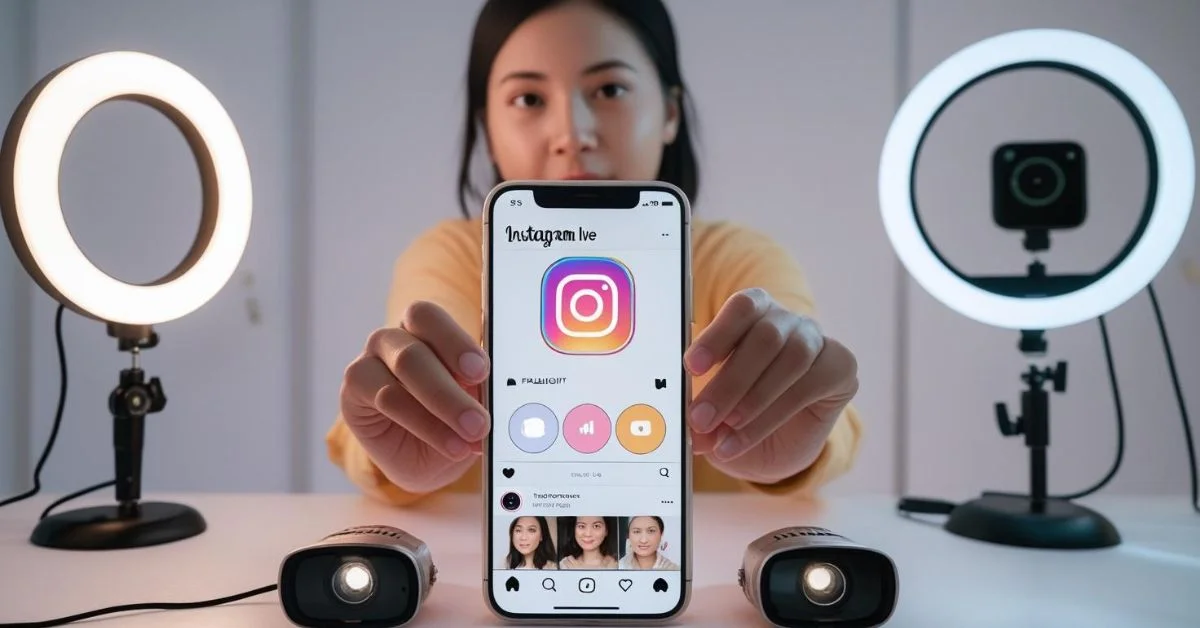
- Use a bright ring light placed around your phone.
- Enable full-screen brightness to simulate screen flash.
- Use a white screen app (like “Screen Flashlight”) and place it close to your face.
This trick is especially helpful when you want to show your face clearly during nighttime live sessions.
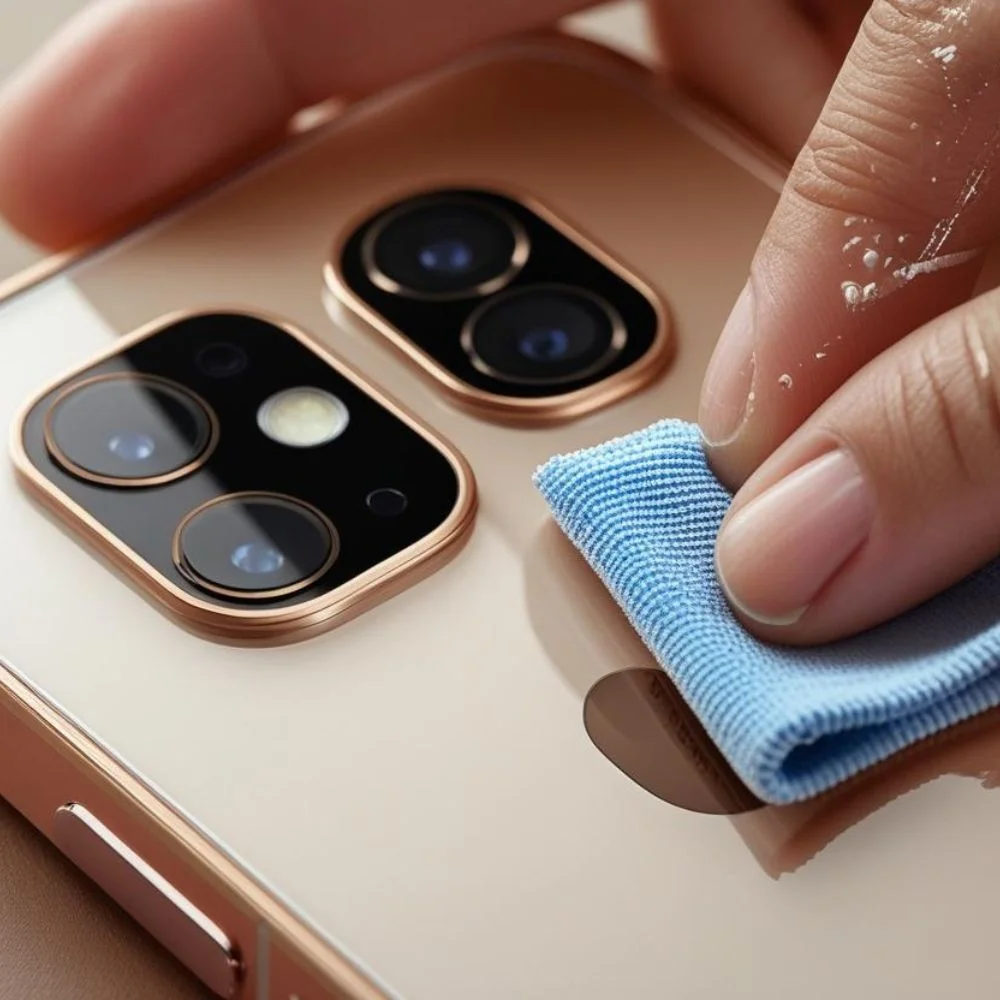
Clean Your Camera and Flash Lens
Sometimes, the issue isn’t software or settings, it’s just a dirty lens.
Cleaning tips:
- Use a microfiber cloth to wipe the flash and camera lens.
- Avoid scratching with hard materials.
- Check for any smudges or stickers that may block the flash.
A clean lens ensures the flash works effectively and your video stays clear.
 Fix Flash Not Working with Basic Troubleshooting
If your flash doesn’t turn on even after trying everything, follow these steps:
Basic fixes that help:
- Restart your phone before going live.
- Try using a flashlight in the camera app to confirm it works.
- Uninstall and reinstall Instagram if bugs persist.
Clear Instagram cache (Android):
- Settings > Apps > Instagram > Storage > Clear Cache
If the flash works outside Instagram but not during Live, it’s likely a platform limitation.
Try External LED Lights for Better Results
If you want pro-level lighting, consider using an external LED ring light or clip-on flash.
Why external lights work better:
- Works for both front and rear cameras.
- Offer adjustable brightness and color temperature.
- Portable and USB-charged.
- Work independently of Instagram or phone settings.
They’re the best choice for influencers, business owners, and anyone who wants sharp visuals.
Conclusion
You don’t need to struggle with bad lighting anymore. Once you understand how to fix or use flash in Instagram Live easily, your videos will look much better and attract more viewers. From checking app permissions to using external lights, every solution mentioned above is simple and effective. Always keep your app updated, use the rear camera for built-in flash, and don’t hesitate to invest in a ring light if you want consistent quality. Good lighting isn’t just a tech fix; it’s the key to better engagement and more confident broadcasting.