
Table of Contents
- Know Your Device Lock Type
- Use Built-in Reset Options
- Try Default Passwords and Codes
- Use OEM Unlocking for Android
- Use ADB Commands for Screen Lock
- Bypass Google FRP Lock
- Unlock SIM Network Code
- Use Third-Party Unlock Tools
- Keep Your Device Secure After Unlocking
- Avoid Illegal Unlocking Methods
- Words on Using Locked Code Tips
Gaining access to your locked device can feel frustrating, especially when you forget your passcode or encounter a security lock. Whether you’re using a smartphone, tablet, or feature phone, there are effective locked code tips that can help you unlock your device without damaging it or risking your data. This guide will walk you through everything in plain language. Every tip is legal, easy to follow, and based on methods used by many users.
Know Your Device Lock Type
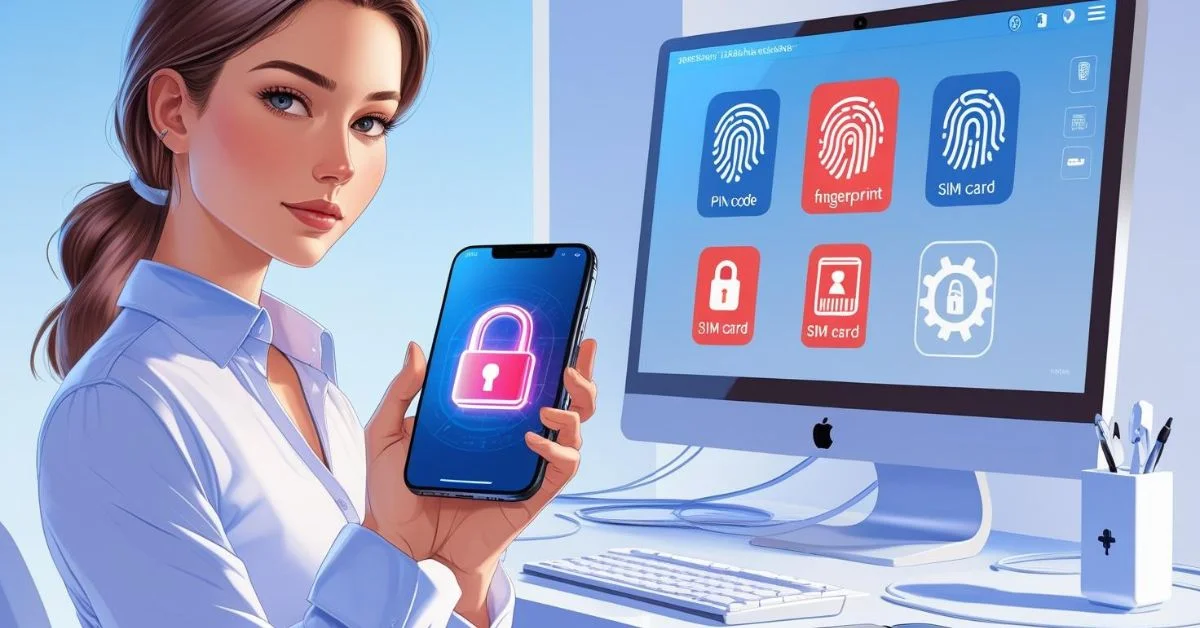
Before you try to unlock your phone, it’s important to identify the type of lock you’re dealing with, such as a PIN, pattern, password, SIM lock, or even a Google FRP lock. Each lock has a specific way to bypass or remove it, so knowing the exact type helps you choose the right unlocking method and avoid wasting time or making mistakes.
Common device lock types include:
- PIN or Password: A numeric or alphanumeric entry.
- Pattern Lock: A swipe gesture in a grid.
- Fingerprint or Face ID: Biometric recognition.
- Network or SIM Lock: Tied to a specific mobile carrier.
Understanding your lock type helps you choose the best method to unlock it.
Use Built-in Reset Options
Most modern smartphones come with built-in options that allow you to reset a locked device. These tools are generally safe to use and can be accessed through the phone’s recovery mode or security settings. They’re designed to help users erase data and remove screen locks when they forget their password or need a fresh start.
1. For Android Devices
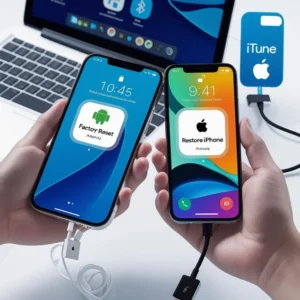
- Most Android phones offer a recovery mode. You can:
- Hold Volume Up + Power to enter recovery mode.
- Use Factory Reset to erase data and unlock.
If you have a Google account, Google Find My Device can reset your phone remotely.
2. For iPhone Devices
- Use iTunes or Finder to connect your phone to a computer.
- Press the right combination of buttons to enter recovery mode.
- Choose Restore iPhone to erase and unlock.
These steps will delete your data, so only use them if you have a backup.
Try Default Passwords and Codes
Many older phones or basic devices come with preset default codes like ‘0000’ or ‘1234’ that are often left unchanged by users. If no new passcode was ever set, these default codes can sometimes still unlock the device, making them worth trying before using more complex unlocking methods.
Common default codes include:
- 0000
- 1234
- 1111
- admin
This method works mostly on feature phones and older models. Always try this before harder options.
Use OEM Unlocking for Android
If you’re using an Android phone, enabling OEM Unlocking can be a useful option. While this feature is mainly intended for developers to unlock the device’s bootloader for testing or custom software, it can also help you bypass certain lock issues when combined with other tools, especially if you’re locked out and need deeper access to your phone’s system.
How did it work?
OEM unlocking allows you to unlock the bootloader. Once it’s open, you can use tools like ADB or custom ROMs to regain access.
Steps:
- Go to Settings > About Phone
- To activate Developer Mode, tap the Build Number seven times
- Enable OEM Unlocking in developer settings
Note: This can void your warranty and may erase data. Always back up.
Use ADB Commands for Screen Lock
ADB, or Android Debug Bridge, is a command-line utility that allows you to link an Android device to a computer and manage various functions remotely. By using specific commands, you can access system files, remove screen locks, install apps, and perform other advanced actions even if the phone’s screen is locked or unresponsive.
To use ADB:
- Install ADB and Fastboot tools on your PC
- Connect your phone using USB
- Run this command:
adb shell rm /data/system/gesture.key
This deletes the lock file. Restart the phone, and the screen lock will be gone. This only works if USB Debugging was enabled earlier.
Bypass Google FRP Lock
Factory Reset Protection (FRP) is a security feature built into Android devices by Google. It activates automatically after a factory reset to prevent unauthorized access. When triggered, it requires you to log in with the last Google account that was synced to the device. If you don’t remember those login details, you won’t be able to access the phone, making it difficult to complete the setup process.
Tips to bypass FRP:
- Use tools like FRP Bypass APK (download carefully from safe sources)
- Use OTG Cable & APK file for manual installation
- Use the TalkBack Settings loophole on some Android versions
Each method depends on your phone’s brand and software version.
Unlock SIM Network Code
Phones that are network-locked are restricted to work only with the original carrier’s SIM cards. If you try using a SIM from another carrier, the phone won’t accept it. To remove this restriction, you can enter a SIM Network Unlock PIN provided by the carrier or use IMEI-based unlocking services that generate a unique code for your device.
Steps to unlock:
- Dial *#06# to get your phone’s IMEI
- Contact the original carrier to request an unlock
- Use websites that offer unlock codes by IMEI
- Insert a new SIM, enter the unlock code
Make sure your contract allows unlocking. Avoid shady apps that promise free unlocks.
Use Third-Party Unlock Tools
If built-in options fail, third-party software can help unlock many devices easily.
Popular tools include:
- Dr.Fone – Screen Unlock
- Tenorshare 4uKey
- iMyFone LockWiper
- PassFab Android Unlocker
These tools often support both Android and iOS, offering options to bypass locks without passwords.
Benefits of using tools:
- Simple interface
- Works on many models
- Can remove different types of locks
- Often safe and tested
Check reviews before downloading. Many offer trial versions.
Keep Your Device Secure After Unlocking
After unlocking your device, it’s important to set up proper security measures so you don’t get locked out again. Simple steps like choosing a password you can remember, enabling fingerprint or face recognition, and regularly backing up your data can help keep your phone safe and easy to access in the future.
Tips to stay safe:
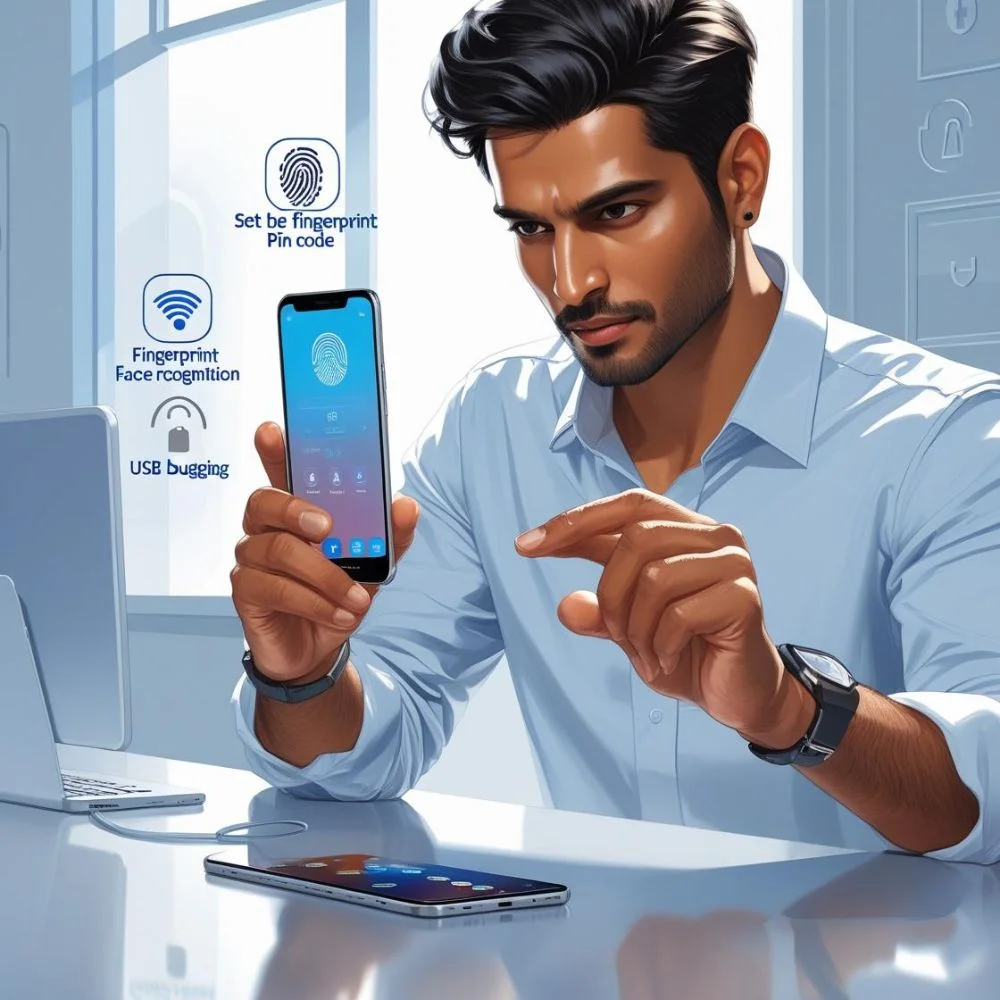
- Use simple, memorable PINs
- Set up biometric locks (fingerprint, face)
- Back up your phone regularly
- Save your password securely (use password managers)
- Keep USB Debugging off unless needed
Device security is just as important as access.
Avoid Illegal Unlocking Methods
Unlocking your device is considered legal as long as you’re doing it for your use, like switching carriers, or you have permission from your mobile provider. This means you’re not breaking any laws if you’re simply trying to use your phone more freely or take it to another network after a contract ends.
However, avoid grey-market services that:
- Use stolen IMEI numbers
- Flash illegal firmware
- Involve hacking
- These methods can cause:
- Device bricking
- Loss of warranty
- Legal issues
Always unlock within the legal guidelines to keep your device safe.
Words on Using Locked Code Tips
Unlocking your device doesn’t have to be difficult. Whether you’re resetting a forgotten PIN, bypassing a pattern lock, or dealing with a network lock, these locked code tips can help restore access safely. Use built-in methods when possible, and only turn to tools if needed.
Always back up your data, keep your passwords in a safe place, and protect your device after unlocking. These small habits can save you from big problems later.