

Table of Contents
- Why Add Multiple Accounts to Outlook?
- Types of Accounts You Can Add
- Follow These Steps to Add a New Email Account in Outlook
- How Outlook Displays Multiple Accounts?
- Add Accounts in Outlook Web (Outlook.com)
- Add Accounts on Outlook Mobile App
- Common Issues and How to Fix Them
- Security and Privacy Tips
- Mastering Outlook with Multiple Accounts
- When to Use Outlook Web vs. Desktop?
- FAQs
- Final Thoughts
Managing multiple email accounts can be overwhelming. Whether it’s your work account, personal email, or a shared team inbox, switching back and forth eats up time and energy. But if you’re using Microsoft Outlook, you’re in luck. Outlook has some surprisingly helpful tools that make managing multiple inboxes easier than you might think.
Why Add Multiple Accounts to Outlook?
Have you ever missed an important email because you forgot to check a certain account? Or spent minutes logging in and out just to send one message? You’re not alone.
Consolidating multiple accounts into Outlook transforms how you manage your emails by streamlining access, boosting productivity, and reducing clutter:
- Saves time: One place to check and respond to emails.
- Reduces stress: No more switching tabs or devices.
- Improves focus: All your communication stays in one streamlined workspace.
Microsoft Outlook allows you to add and view multiple email accounts (Gmail, Yahoo, iCloud, and more) without mixing them up. Each account stays separate but easily accessible.
Types of Accounts You Can Add
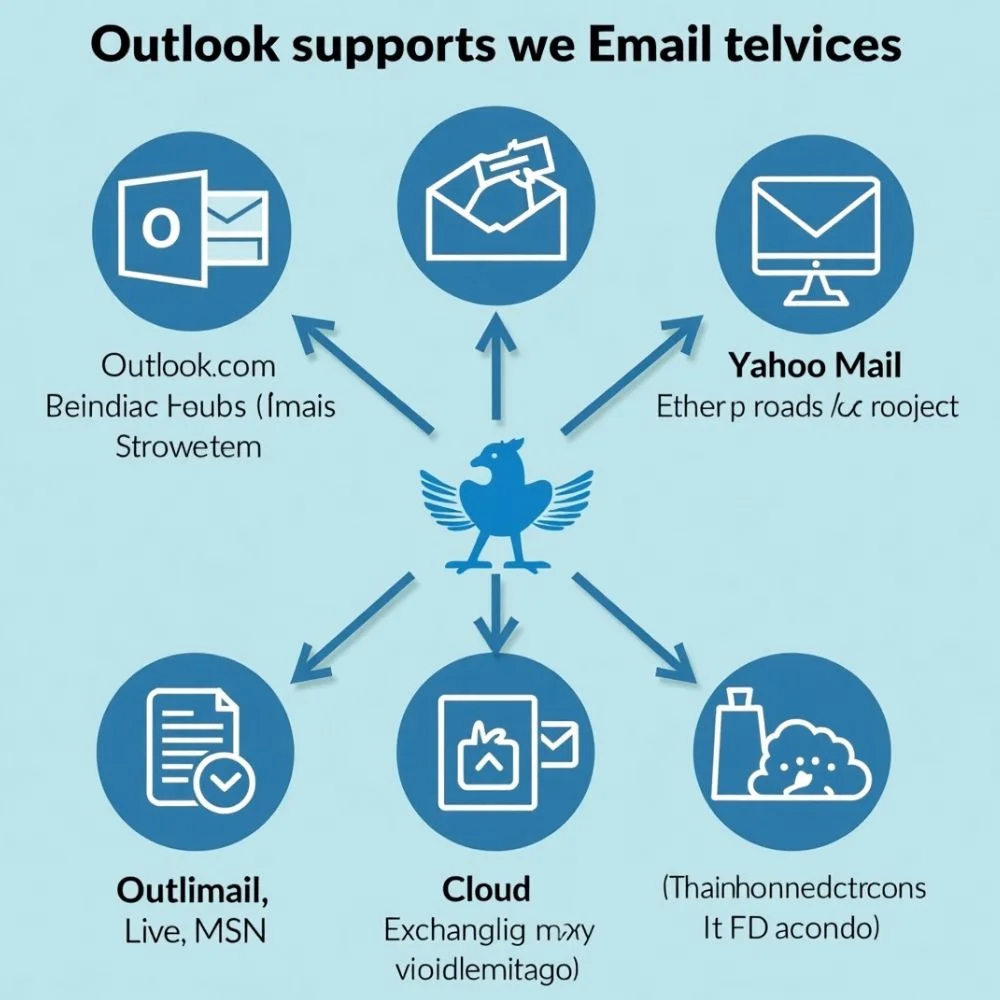
Outlook supports a wide variety of email providers. Some common types include:
- Outlook.com (Hotmail, Live, MSN)
- Gmail
- Yahoo Mail
- iCloud
- Exchange
- Office 365
- Other IMAP/POP accounts
Whether you have a free Gmail account or a company-issued Exchange email, you can easily connect them all in Outlook.
Follow These Steps to Add a New Email Account in Outlook
- Start by launching the Microsoft Outlook app on your Windows or Mac computer.
- In the upper-left corner, click on File.
- Then select Add Account under the Account Information section
- A new window will pop up. Just type in the email address you want to add and click Connect.
- Type your email account password when the system prompts you. You might need to verify the connection using two-step authentication or by entering a security code.
- Once connected, Outlook will automatically sync your inbox, folders, and calendar (if available). Click Done to finish.
How Outlook Displays Multiple Accounts?
After setting things up, you’ll see all your email accounts listed on the left-hand side. Each one has its own inbox, drafts, sent mail, deleted items, and so on.
You can easily:
- Click on each inbox to view emails from that account only.
- Drag and drop emails between accounts (if needed).
- Search emails in one account or across all your accounts.
This setup makes it clear and organized without mixing up your emails.
Add Accounts in Outlook Web (Outlook.com)
If you use Outlook via a web browser, you can still manage multiple accounts easily.
Steps to Add Email Accounts in Outlook Web:
- Log in to your main Outlook.com account.
- Click the Settings gear icon located in the top-right corner
- Scroll down and click View all Outlook settings.
- Go to Mail > Sync email.
- Under Connected accounts, click Add a connected account.
- Choose your email provider or enter custom IMAP/POP settings.
- Enter your login details and click OK.
Emails from the connected account will now show up in your Outlook web inbox. You can also choose whether to send from the new account or only receive messages.
Add Accounts on Outlook Mobile App
For users on the go, the Outlook mobile app for Android and iPhone lets you manage multiple accounts effortlessly.
How to Add an Account on the Outlook Mobile App:
- Open the Outlook app on your smartphone.
- Tap your profile icon in the top-left corner.
- Select the gear icon (Settings).
- Tap Add Account.
- Enter the new email address and sign in.
- Outlook will sync your inbox and start showing emails from the new account.
You can switch between accounts by tapping your profile icon and selecting the account you want to check.
Common Issues and How to Fix Them
1. Emails Not Syncing
Sometimes, new messages take too long to appear. Try this:
- Hit Send/Receive All Folders.
- Check internet connection.
- Re-enter credentials in Account Settings.
2. Wrong “From” Address
When replying, Outlook may default to the wrong account. To fix:
- Click the “From” field dropdown when composing an email.
- Set your preferred default account under File > Options > Mail > Send Messages.
3. Duplicate Emails
If you’ve accidentally added the same account more than once using POP and IMAP, you might get duplicates. Delete one of the accounts under Account Settings.
Security and Privacy Tips
When managing multiple inboxes in Outlook, keep your email security in mind:
- Use strong, unique passwords for each account.
- Enable two-factor authentication (especially for Gmail and Outlook.com).
- Avoid checking sensitive emails on public Wi-Fi without a VPN.
- Review account permissions if you’re connecting shared inboxes or third-party apps.
Mastering Outlook with Multiple Accounts
Want to become a power user? Here are a few additional ways to boost your efficiency:
1. Keyboard Shortcuts
Memorize a few shortcuts to fly through your inbox:
- Ctrl + Shift + M = New message
- Ctrl + 1 = Go to Mail
- Ctrl + Y = Switch folders
2. Custom Signatures
Set a unique signature for each account:
- Work email: Include title, phone, and company logo.
- Personal: Keep it simple and friendly.
Go to File > Options > Mail > Signatures to customize.
3. Calendar Integration
You can also manage multiple calendars across accounts. Just like inboxes, calendars remain separate but viewable in a single interface. Add meetings, reminders and appointments without toggling apps.
When to Use Outlook Web vs. Desktop?
If you’re wondering whether you should use the Outlook desktop app or the Outlook web interface, here’s a quick comparison:
FAQs
Q: Can I set different notification tones for each account?
A: On mobile, yes! In the Outlook app settings, you can customize sounds per account.
Q: Will my calendar and contacts stay separate too?
A: Absolutely. Outlook keeps all data isolated unless you manually merge them.
Q: Can I add an unlimited number of email accounts in Outlook?
A: Technically no, but performance might degrade after 10+ accounts, especially if syncing large mailboxes.
Final Thoughts
Using Outlook to manage multiple email accounts can feel simple and stress-free with the right setup. In fact, Outlook is designed to help you stay organized, productive and efficient. Whether you’re on your laptop at work or checking emails on your phone during lunch, everything stays connected.
By following the steps in this guide, you’ll be able to add, view, and switch between multiple email accounts easily without mixing up your messages or losing time. Use the built-in features like color coding, rules, and account naming to keep things neat and under control.